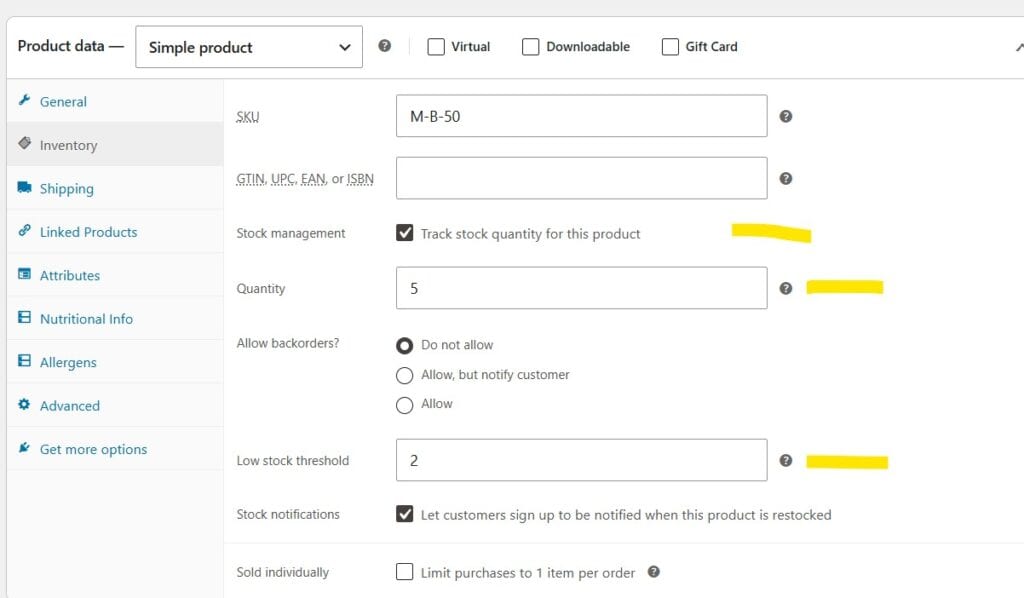
WooCommerce provides you the ability to track inventory in two different modes:
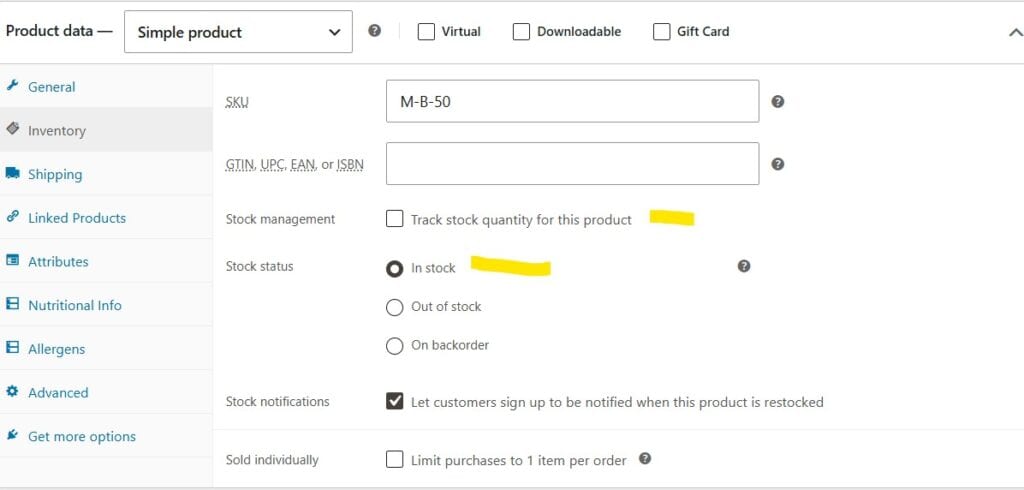
1. Just have a product “In Stock” or “Out of Stock” with no inventory counts
2. Or track and decrement inventory and put the item out of stock when the count reaches zero.
-You have the ability to do this on a product-by-product basis.
If you want to not track inventory, do the following:
If you do want to track inventory counts, do the following:
Repeat the above steps but check
Stock Management “Track stock quantity for this product“.
In the Quantity field, enter the quantity on-hand.
Click Update to save changes (in the upper right).
Note: The product will show low inventory when the Low stock threshold is met (you can define this).
The product will go out of stock when the quantity reaches zero.