
Live mode is handy to be used by the kitchen or management staff to see orders at various locations scheduled for pickup or delivery. Some customers use this on a flat screen TV to keep a live dashboard visible. Live mode will generate an audio alert as well. You will need to have volume up on your TV or computer in order to hear the alert tone for an order. They will automatically populate as orders come in.
To Access Live Mode:
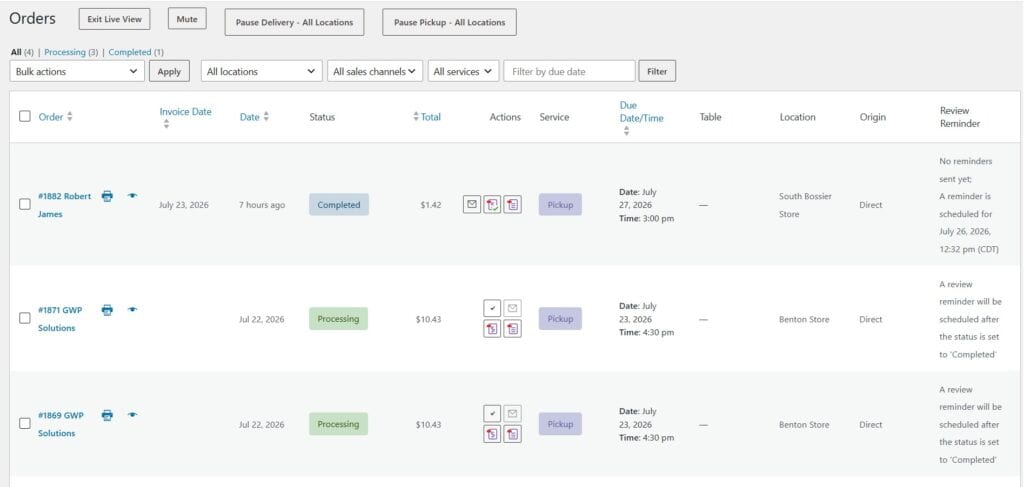
*Sample data only
-You may access any order detail data from this screen by clicking on the order.
-Click the printer icon if you would like to generate a pickup ticket/slip for printing
-Click the eye icon to to show an order summary screen with additional details
-Order status, order total, and type of service (i.e. Pickup or delivery) will be shown as well as store location
-You also may have additional options like PDF invoice and packing slip available to view
-Click the Mute button if you wish to silence the audible alert for orders
-You may click Pause Delivery-All Locations and Pause Delivery-All Locations to disable pickup or delivery services for 12 hours (think of it as a temporary snooze).
-Click Exit Live View to leave the live screen and return to regular order view
We partner with Orderable to provide local pickup and delivery functionality for your website.
For in-depth documentation on Orderable’s advanced features and how it can be set up, we encourage to visit their site for full documentation:
https://orderable.com/documentation/