Click the order number you want to fulfill, it will take you to the order details screen. The order will be in non-paid status (example: “On Hold”)
If the order does not contain a reserved weight/random weight item, change the order status to “Processing” and then click the “Update” button. You can skip the remaining steps. If it does contain a weighted item, follow the remaining steps below.
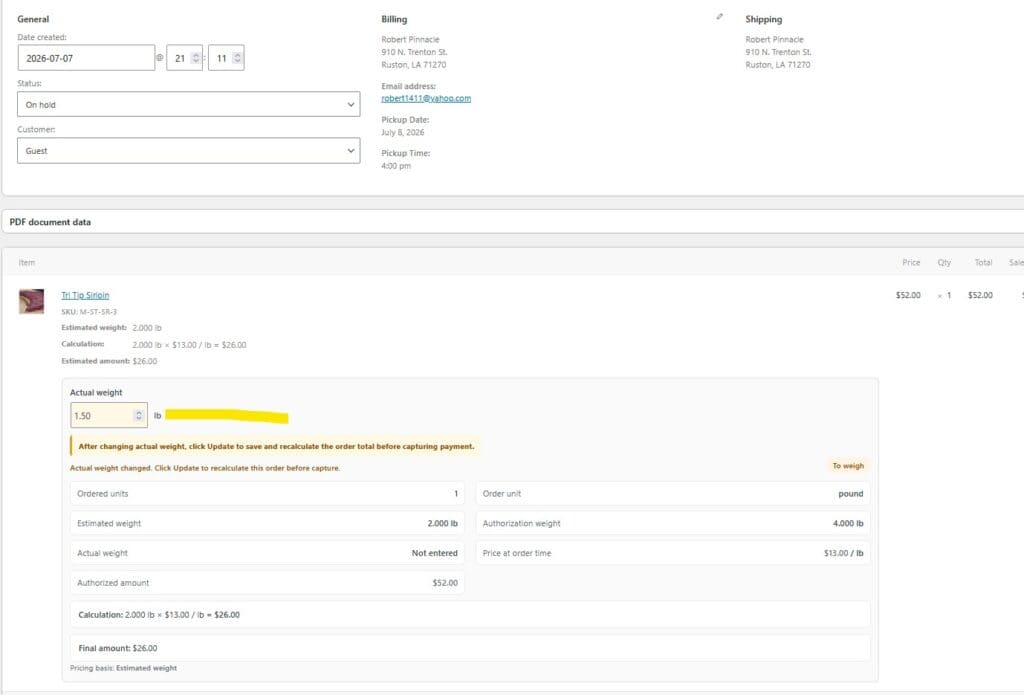
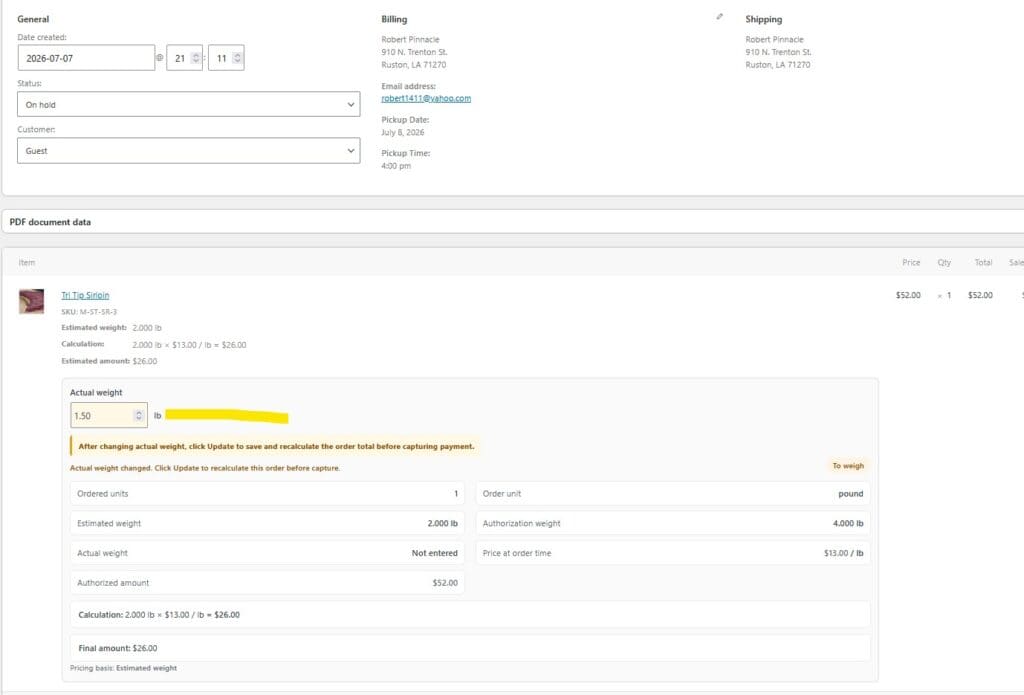
Scroll down to the Item section; you will see the Actual Weight calculation box. This will show the reserved weight range of the item that the customer purchased along with the temporary CC hold amount, with all relevant price data.
Type in the actual weight of the item. Example: Let’s say our Tri Tip was 1.50 lbs.
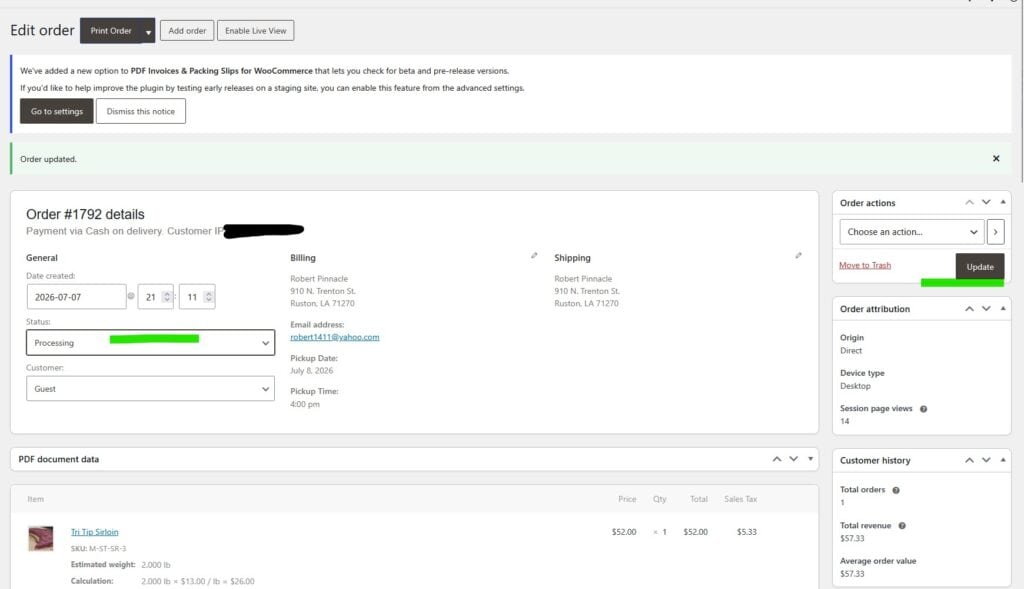
Change the order status to “Processing”. This status means “paid”. This tells the payment processor to only capture the final weight of the item and not the max. amount that was pre-authorized.
Now click the Update button in the upper right corner. Ensure once the order fires off, the status does not say “failed” and still says “Processing”. Notice the weight box grays out because it can no longer be edited while the order is in this status.
Now you are ready to fulfill the order via customer pickup or delivery.
Note: If the order status goes to “Failed” after you try to process it, please look at the order note in the right column. If you keep having issues notify WP CartCraft support with the error message and we will assist you.
Once the customer picks up the order (or the order is delivered) set the status to “Completed”. The customer will be notified that they have received their order and the transaction will be complete.
Additional Note: All order information in screenshots are not real and are only shown as an example from a test system.
Want to know more?
Sign up for our email list
WP Cart Craft builds high-performance websites for small businesses that want powerful tools. We combine open-source ownership, POS inventory sync, VPS hosting, and managed support to give you pro-level tools at a lower cost.
We are experienced in helping small businesses get their digital footprint out there. The platform we use is open source and flexible. It also powers 43% of websites on the internet. Contact us today to discuss what we can do for you.