
Tracking Inventory vs. In Stock

WooCommerce provides you the ability to track inventory in two different modes:

1. Just have a product “In Stock” or “Out of Stock” with no inventory counts

2. Or track and decrement inventory and put the item out of stock when the count reaches zero.

-You have the ability to do this on a product-by-product basis.

If you want to not track inventory, do the following:
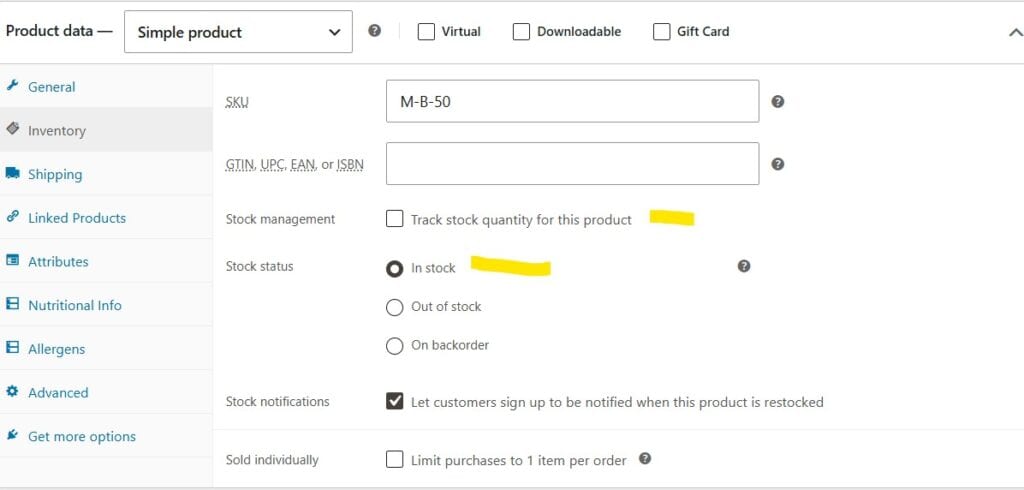
  1. In WooCommerce go to Products.
  2. Click Edit to open the product you wish to change.
  3. Scroll down to the Product Data section
  4. Click the Inventory tab
  5. Go to “Stock Status“, if you want to just track if the item is in stock or not, be sure that Stock Management is not checked.
  6. Select In Stock or Out of stock as needed.
  7. Click Update to save changes (in the upper right).

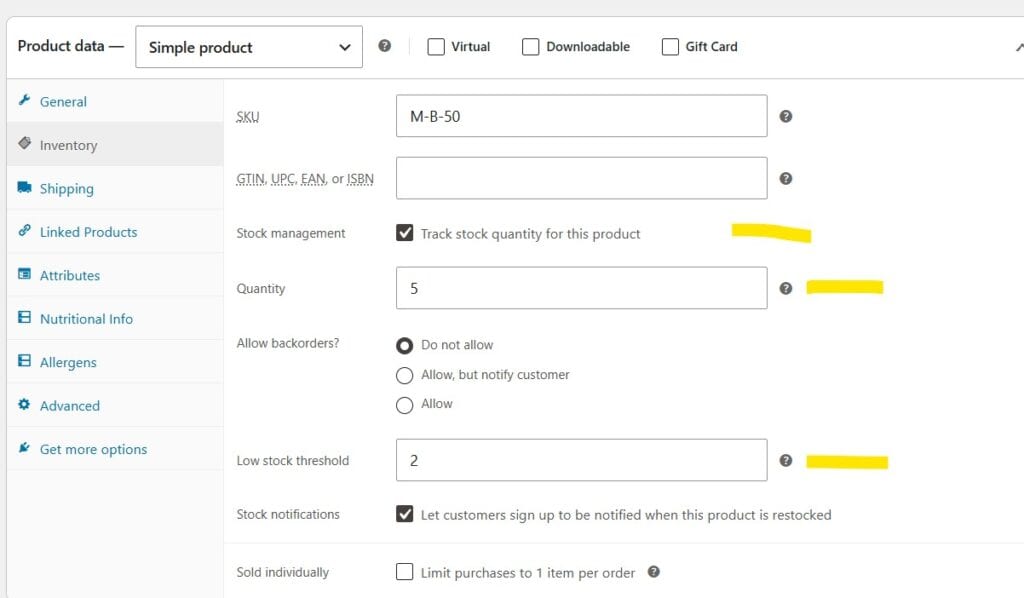
If you do want to track inventory counts, do the following:

Repeat the above steps but check
Stock ManagementTrack stock quantity for this product“.

In the Quantity field, enter the quantity on-hand.

Click Update to save changes (in the upper right).

Note: The product will show low inventory when the Low stock threshold is met (you can define this).
The product will go out of stock when the quantity reaches zero.

Want to know more?

Sign up for our email list

WP Cart Craft builds high-performance websites for small businesses that want powerful tools. We combine open-source ownership, POS inventory sync, VPS hosting, and managed support to give you pro-level tools at a lower cost.

Reach Out To Us:

Contact Page

Located In

Ruston, LA 71270
WP Cart Craft © 2026, A GWP Endeavors LLC Company
We are experienced in helping small businesses get their digital footprint out there. The platform we use is open source and flexible. It also powers 43% of websites on the internet. Contact us today to discuss what we can do for you.
Contact INfo

Phone

318-814-8489

Business Hours

Mon – Fri 9am-5pm
The Freedom of choice